🖐 Welcome, trader! 🖐
Welcome to Tethermax, the #1 crypto exchange cashback platform.
Invest an average of 3 minutes and 30 seconds
to find out how much more you paid in fees on WOO X Pro!
♾️Visit Tethermax Official Website
🖐Curious about TetherMax benefits?
① Save up to 30% on trading fees
Regular account: Maker fee 0.02%, Taker fee 0.06%
Tethermax account: Maker fee 0.02%, Taker fee 0.042%
② We return 90% of the fees you paid
Effective fee after cashback: Limit Order 0.002%, Market Order 0.0042%
🙏 Don't miss out on cashback!
Trading without cashback is like losing money.
We highly recommend you to get cashback.
🖐 Create Your TetherMax Cashback Account
You can create up to two WOO X Pro accounts per person. 😀
※ Each account must complete KYC using a different ID. You may use one of the following (National ID Card, Driver's License, Passport)
📌 Already have a WOO X Pro account?
Simply create a new account using an ID that has not been used on your existing account, then complete KYC.
( Estimated time : Approximately 3 minutes. )
📌 Before You Sign Up
Please prepare the following :
① A new email address for registration
② An ID that has not been used for your existing WOO X Pro account
Once you're ready, click [Create Cashback Account] and complete your registration.
📌 Cashback Activation
To receive cashback, you must register through a sign-up link that includes the TetherMax referral code.
Before completing registration, make sure the Referral Code on the sign-up page is set to : TETHERMAXCODE
🙋 Need Help?
If you have any questions regarding KYC verification, deposits, withdrawals, or trading, please contact the [TetherMax 24/7 Customer Support] team anytime.

📌 How to Complete KYC Verification
Once your email verification is complete, follow the steps below.
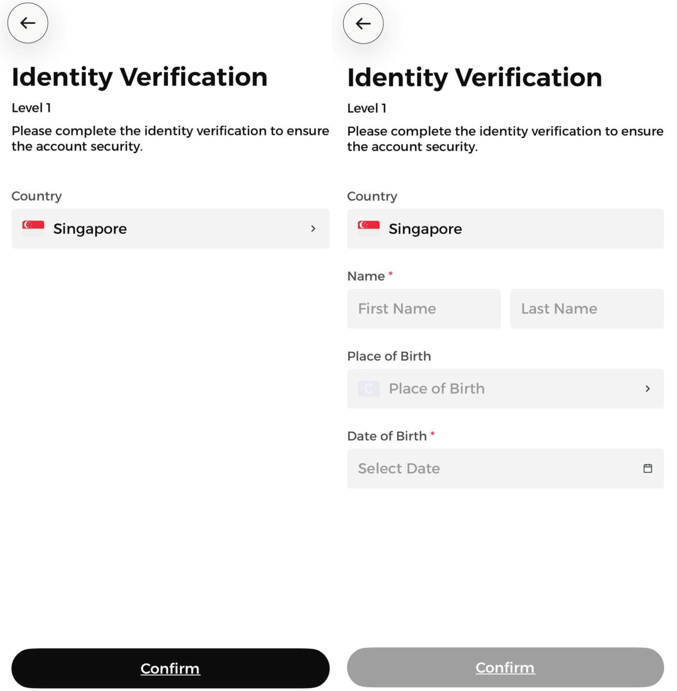
1️⃣ On the Identity Verification page, select your country and click Confirm.
2️⃣ Enter your name, place of birth, and date of birth, then click Confirm.
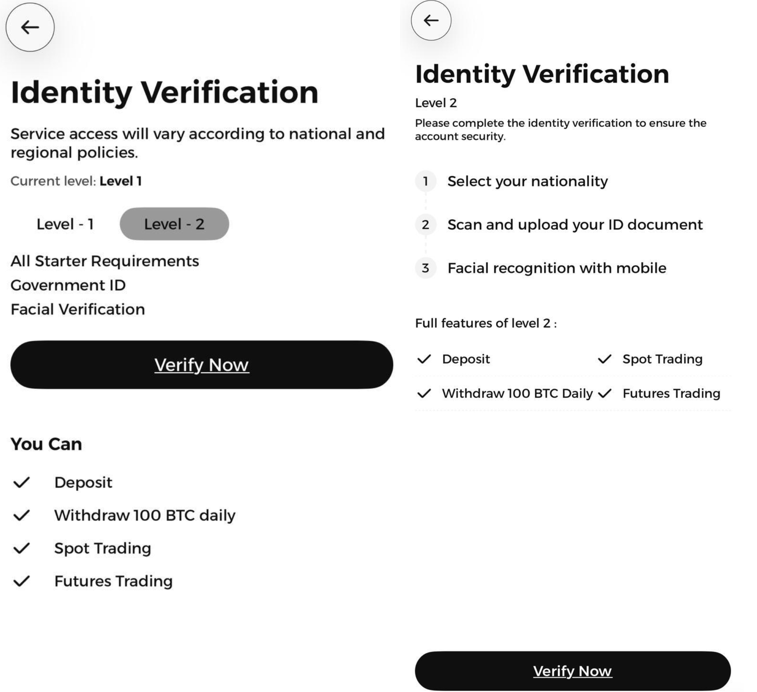
3️⃣ After completing Level 1 Verification, click Verify Now to begin Level 2 Verification.
4️⃣ Review the verification process (Select Nationality → Upload ID → Facial Recognition), then click Verify Now again.
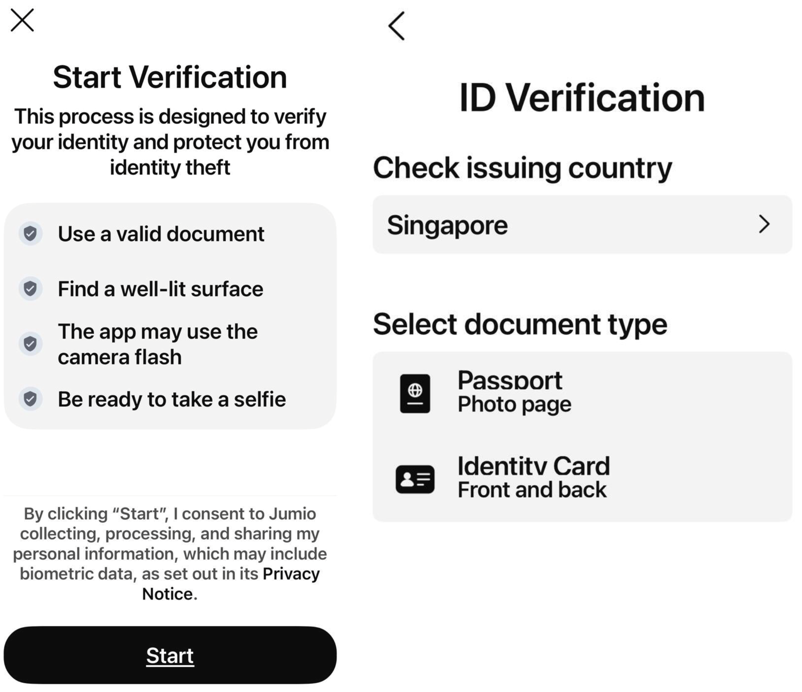
5️⃣ Read the instructions and click Start to begin verification.
6️⃣ Select your ID's issuing country and document type (Passport or Identity Card).
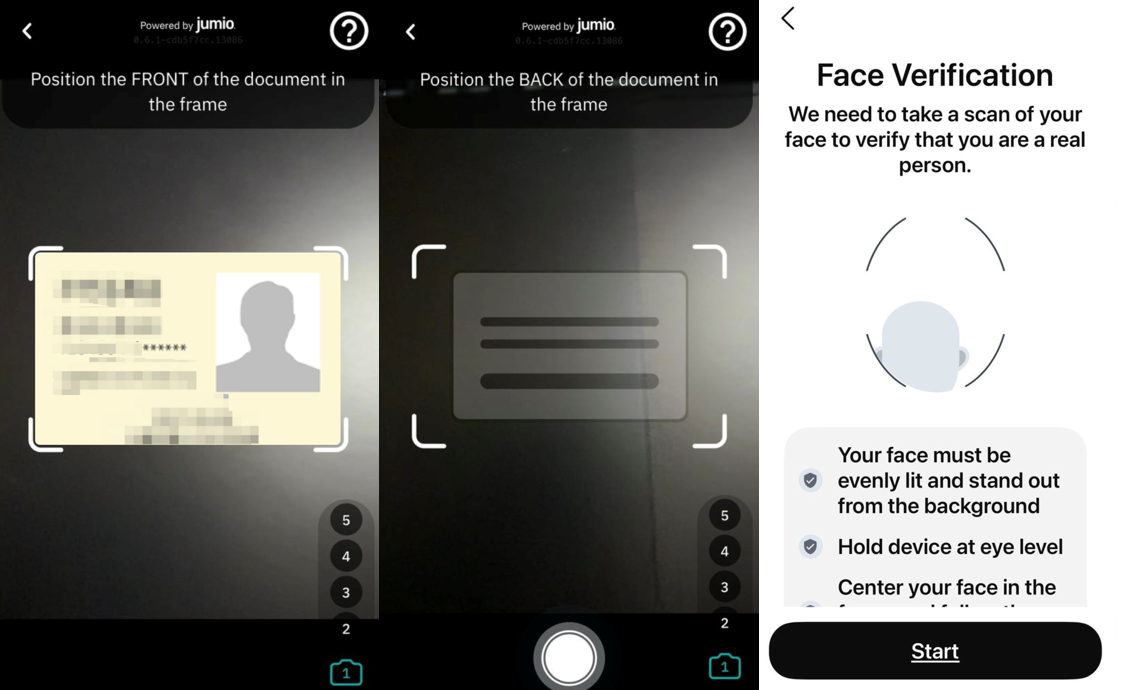
7️⃣ Take a photo of the front of your ID within the frame.
8️⃣ Take a photo of the back of your ID within the frame.
9️⃣ Complete the facial verification by following the on-screen instructions.
🔟 Once your status shows Verified on your profile page, your KYC verification is complete. 🙂
Don't hesitate to get help if you need it!